📝 How to Check Word Count in Any Document (Free & Easy)
Have you ever needed to know exactly how many words are in your document? Whether you're a student writing an essay, a professional preparing a report, or a content creator working on an article, knowing your word count is essential.
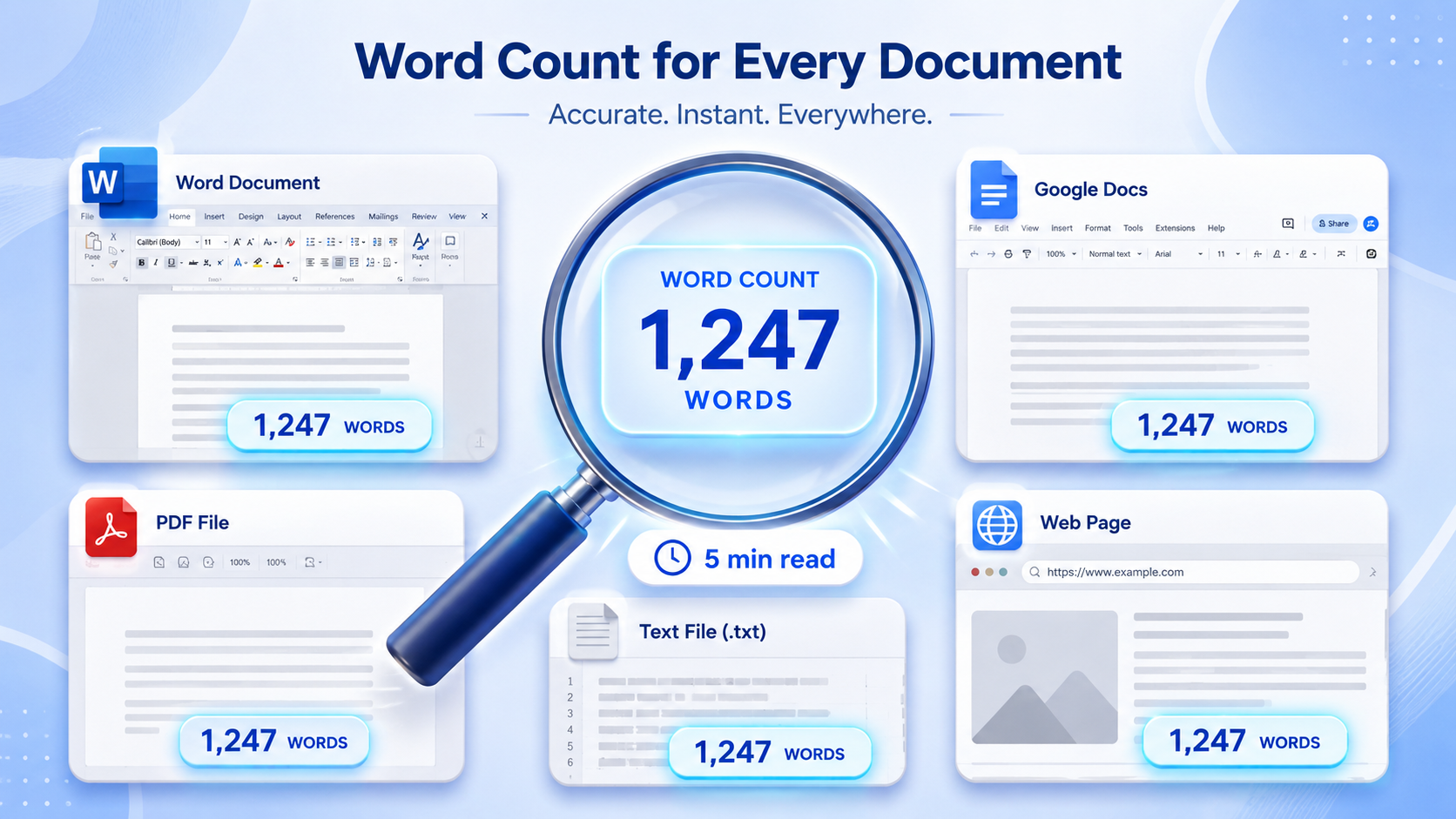
In this guide, I'll show you how to check word count in any document – whether it's a PDF, Word file, Google Doc, web page, or even a simple text file. Best of all, I'll share a free, no-sign-up tool that makes it instant.
🎯 Why Word Count Matters
| Reason | Why It's Important |
|---|---|
| Academic Requirements | Essays and assignments have strict word limits |
| SEO & Blogging | Longer content often ranks better in search |
| Professional Documents | Reports and proposals need to be concise |
| Freelance Writing | Clients pay based on word count |
| Translations | Pricing often depends on word volume |
| Social Media | Twitter/X posts have character limits |
📋 How to Check Word Count in Different Document Types
1️⃣ Microsoft Word
Desktop Version:
- Open your Word document
- Look at the bottom-left corner – you'll see the word count
- Click on it for more details (characters, paragraphs, etc.)
- Or go to Review → Word Count in the ribbon
Online (Word Online):
- Open your document in Word Online
- Click Review in the toolbar
- Select Word Count from the menu
2️⃣ Google Docs
- Open your Google Doc
- Click Tools in the top menu
- Select Word Count (or press
Ctrl+Shift+Con Windows /Cmd+Shift+Con Mac) - A popup shows word count, characters, and pages
3️⃣ PDF Files
Method 1: Copy and Paste
- Open your PDF
- Select all text (
Ctrl+Aon Windows /Cmd+Aon Mac) - Copy and paste into a word counter tool
- Get the word count instantly
Method 2: Use XToolBoost Word Counter
- Visit our free Word Counter tool
- Paste the text from your PDF
- Click "Count Words"
- Get instant results
4️⃣ Web Pages & Articles
Method 1: Copy and Paste
- Select the text on the web page
- Copy it (
Ctrl+Con Windows /Cmd+Con Mac) - Paste into a word counter tool
- Get the word count
Method 2: Browser Extensions
- Install a word counter browser extension
- Click the extension icon on any page
- Get the word count instantly
5️⃣ Plain Text Files (TXT)
- Open the text file in Notepad or any text editor
- Select all text (
Ctrl+Aon Windows /Cmd+Aon Mac) - Copy and paste into a word counter tool
- Get your word count
6️⃣ Excel & Spreadsheets
- Open your Excel spreadsheet
- Select the cells you want to count
- Copy the content
- Paste into a word counter tool
- Get the word count
🛠️ The Easiest Way: XToolBoost Word Counter
Instead of using different methods for each document type, there's a much easier way.
Our free Word Counter tool works for ANY document:
How It Works:
| Step | Action |
|---|---|
| 1 | Open the Word Counter tool |
| 2 | Copy text from any document (Word, PDF, web page, etc.) |
| 3 | Paste it into the tool |
| 4 | Click "Count Words" |
| 5 | Get instant results: words, characters, sentences, paragraphs |
What You Get:
- ✅ Word Count – Total number of words
- ✅ Character Count – With and without spaces
- ✅ Sentence Count – Number of sentences
- ✅ Paragraph Count – Number of paragraphs
- ✅ Reading Time – Estimated time to read
- ✅ 100% Free – No sign-up, no limits
📊 Word Count Guide for Common Documents
| Document Type | Typical Word Count |
|---|---|
| Blog Post | 500 - 2,000 words |
| Essay | 500 - 3,000 words |
| News Article | 300 - 800 words |
| Research Paper | 2,000 - 5,000 words |
| Novel Chapter | 3,000 - 5,000 words |
| Business Report | 1,000 - 3,000 words |
| Social Media Post | 50 - 200 words |
| 50 - 300 words | |
| SEO Article | 1,000 - 2,500 words |
| Product Description | 100 - 300 words |
💡 Pro Tips for Word Counting
1. Check Word Count Before Submitting
Always check your word count before submitting any document. Most professors, editors, and clients have strict word count requirements.
2. Use the "Find" Feature for Specific Words
Want to count how many times a specific word appears? Use Ctrl+F (Find) and enter the word. The finder will show you how many instances it finds.
3. Count Words in a Selection
In most word processors, you can select specific text and see the word count for just that selection.
4. Use Keyboard Shortcuts
- Google Docs:
Ctrl+Shift+C(Windows) /Cmd+Shift+C(Mac) - Microsoft Word: Click the word count in the status bar
5. Keep the Word Counter Bookmarked
Save our Word Counter tool to your bookmarks for quick access anytime you need to count words in any document.
🔍 How to Count Words in Different Languages
| Language | What to Know |
|---|---|
| English | Standard word counting (spaces between words) |
| Chinese, Japanese, Korean | Characters are counted differently |
| Arabic | Right-to-left text, count spaces |
| Spanish, French, German | Same as English, accented characters count |
❓ Frequently Asked Questions
Yes! XToolBoost offers a completely free word counter with no usage limits.
No. You can use the word counter instantly without creating an account.
Yes. Copy text from the PDF and paste it into our Word Counter tool.
Both! The tool shows character count with spaces and without spaces.
Yes. Our word counter works on any device with a web browser – desktop, tablet, and mobile.
Yes. The tool works locally in your browser. Your text is never stored on our servers.
Yes. The tool works for all languages, including Chinese, Arabic, and others.
There's no strict limit. The tool can handle very long documents.
Yes. The tool counts all words, including repeated words.
Yes. The tool shows sentence count, paragraph count, and even estimated reading time.
📝 Final Thoughts
Checking word count doesn't have to be complicated. Whether you're using Microsoft Word, Google Docs, or a PDF file, there are easy ways to get your word count.
But the quickest and easiest way is using our free Word Counter tool – it works with ANY document type, is 100% free, and requires no sign-up.
Don't stress about word counts. Just paste your text and get instant results.