Key takeaways
- Most "free online PDF splitter" tools upload your files to a server you do not control
- Modern browsers can split PDFs locally using JavaScript and pdf-lib — no upload required
- You can verify whether a tool uploads your file by checking the browser's Network tab
- A VPN does not help here — the server still receives the file
- Local splitting is typically faster than server-based for files under 100 MB
- You can split by page range, every N pages, odd/even pages, or by bookmarks
When you search "split PDF online", almost every tool at the top of the results works the same way. You drag in your file, it gets uploaded to a server, the server extracts the pages you selected, and you download the result. For a public document, that is fine. For a signed lease, a mortgage application, a medical record or a confidential client document, it is a genuine problem.
This guide explains why upload-based splitting is risky, how browser-based splitting solves it, and how to extract any pages without a single byte leaving your device.
Why "free online" usually means "upload your files"
Every server-based PDF splitter works through the same pipeline:
- You select a PDF on your device
- The browser uploads the full file to the tool's server
- The server processes the split — sometimes alongside files from other users
- The split PDFs are sent back to your browser
- Your files sit on the server for some period before deletion
The step that matters for privacy is step 5. How long do the files stay on the server? Who has access to them? Are they backed up somewhere? Is a copy held in a cache? Most tools do not tell you — and their privacy policies often leave themselves room to use your files for "service improvement" or "analytics".
What you are trusting when you upload
- That the company will actually delete your file on schedule
- That no employee can access it while it is stored
- That the file is not written to a backup or log
- That the connection is genuinely encrypted end-to-end (many are HTTPS but that only protects the transit, not the storage)
- That the company will not be sold and its data transferred to a new owner
- That the server itself is not leaking files — in 2024, two online PDF makers were found exposing thousands of user-uploaded passports, driving licences, contracts and certificates[reference:0]
For a business handling confidential client documents, or anyone dealing with legal, medical, or financial paperwork, these are not hypothetical concerns. GDPR, HIPAA, and various state privacy laws place real obligations on how personal data is processed — and uploading a document you are legally required to protect to a third-party server you do not control is a compliance problem waiting to happen.
The FBI's Denver field office issued a formal warning in March 2025 about malicious online document converters that not only steal data from uploaded files but can return output files containing malware — including ransomware[reference:1]. A PDF splitter is just a document converter with a different name.
How browser-based splitting actually works
Modern browsers are powerful enough to do file operations that once required desktop software. A browser-based PDF splitter uses three technologies to work entirely on your device:
- FileReader API — reads the file from your disk into memory, without uploading it anywhere
- pdf-lib — a JavaScript library that parses PDF structure and copies specific pages into new documents
- Blob and download links — generate the split PDFs as in-memory objects that download directly to your Downloads folder
Here is what actually happens when you split a PDF in a browser-based tool:
- You select a file — the browser reads it locally with the FileReader API
- The pdf-lib library parses the PDF's internal page structure
- Based on your selection — page range, every N pages, odd/even — the library identifies which pages to copy
- Those pages are copied into a new PDF document (or multiple documents)
- The result is generated as a Blob (an in-memory binary object)
- The Blob is offered as a download — your browser writes it to your Downloads folder
At no point does the file travel over the network. If you open your browser's developer tools and watch the Network tab, you will see zero upload traffic — only the initial page load and any asset requests[reference:2]. The PDF loads into your browser tab, pdf-lib manipulates it in memory, and you download the result. The server never sees the content[reference:3].
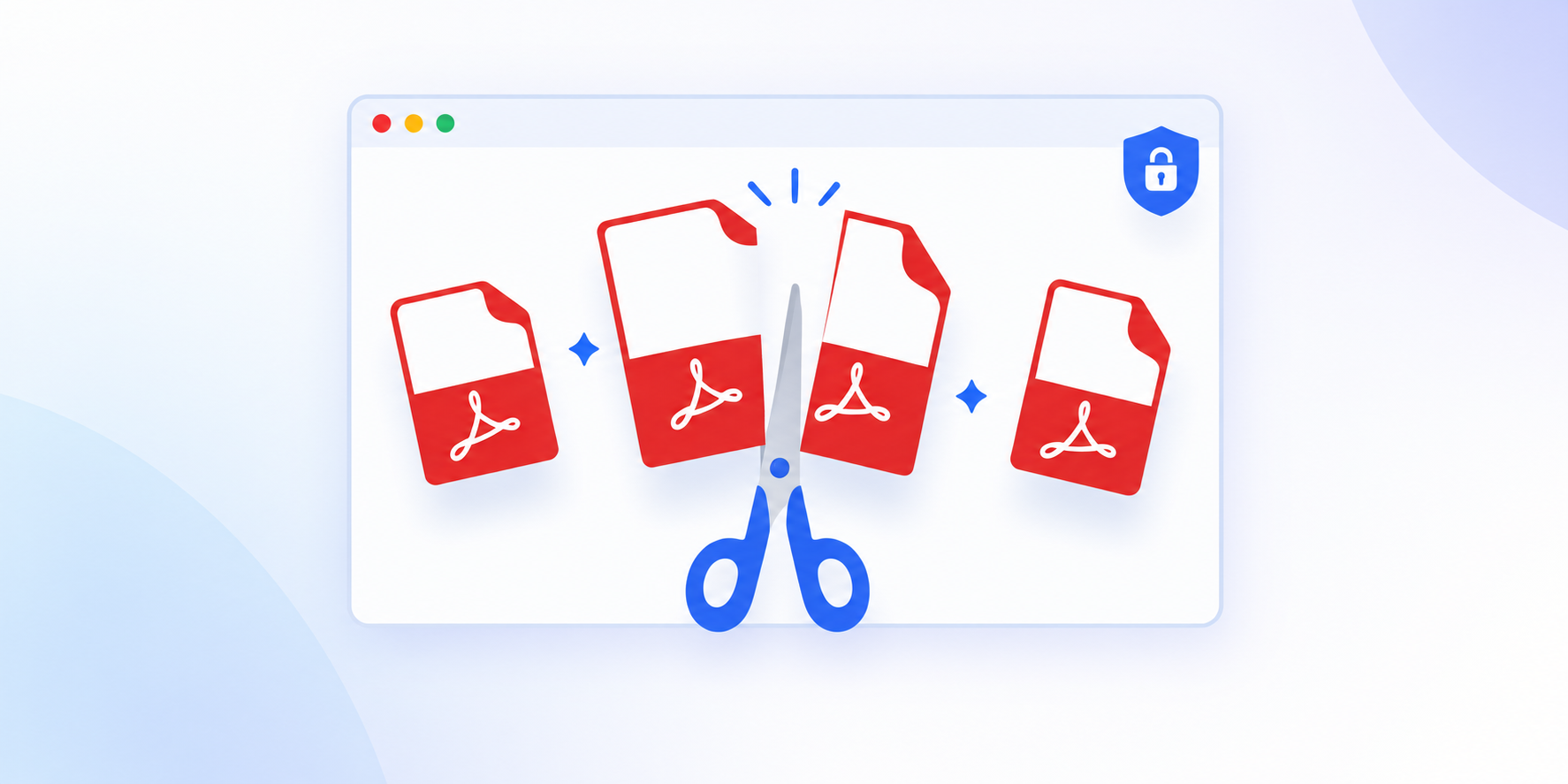
Split PDF — runs in your browser
Split by page range, every N pages, odd/even pages, or extract individual pages. Files are processed locally with pdf-lib — nothing is uploaded to any server.
How to split a PDF without uploading (step-by-step)
Here is the complete process for splitting a PDF privately. The whole thing takes about 60 seconds.
Open the browser-based splitter
Go to Split PDF. This tool runs entirely in your browser — no account, no upload, no watermark.
Add your PDF file
Drag your PDF onto the drop area, or click to browse. The file never leaves your device — it is read into memory by your own browser.
Choose how to split
Select your split mode — extract a custom page range (e.g. 1-5, 8, 12-20), split every N pages into equal parts, extract only odd or even pages, or separate every page into its own file. Each mode is designed for a different real-world use case.
Click Split
The tool parses the PDF, copies the selected pages into new documents in memory, and prepares them for download. This usually takes 1–3 seconds per file on a modern device.
Download the split PDFs
Your browser saves the new files to your Downloads folder. If you extracted multiple ranges, they may be bundled in a ZIP file for convenience. The split PDFs are now yours — and no copy of the original exists anywhere else.
Split modes: which one do you need?
Different tasks need different kinds of splitting. Here is what each mode does and when to use it.
| Mode | What it does | Best for |
|---|---|---|
| Custom page range | Extract specific pages, e.g. 1-5, 8, 12-20 |
Pulling out a chapter, a signature page, or a single invoice |
| Every N pages | Break the document into equal chunks of N pages | Email attachments, print batches, splitting a long report evenly |
| Odd / even pages | Extract only odd (1, 3, 5…) or only even (2, 4, 6…) pages | Duplex scanning, separating interleaved documents, print-on-one-side workflows |
| Every page separate | One PDF per page | Slides, forms, or pages you need to annotate individually |
| Bookmark / chapter | Split at bookmark boundaries automatically | Textbooks, manuals, contracts with a table of contents |
If you only need a handful of pages from a large document, custom page range is almost always the fastest option. If you are breaking a 200-page report into email-sized chunks, every N pages will do it in one pass.
How to verify a tool is not uploading
You do not have to take any tool's word for it. There are two simple tests anyone can run.
Test 1 — the Network tab
- Open the tool in your browser
- Press F12 (or Cmd+Option+I on Mac) to open Developer Tools
- Click the Network tab
- Check Preserve log and clear the request list
- Split a PDF as you normally would
- Watch the requests
If the tool is uploading your file, you will see a request with a multi-megabyte body going to a remote server. If it is browser-based, you will see almost nothing — just small requests for page assets[reference:4]. Also check the WS tab for WebSocket transfers, which the Network tab alone may miss.
Test 2 — the offline test
- Load the tool's page in your browser
- Turn off your Wi-Fi or disconnect your internet
- Try to split a PDF
If the split succeeds while you are offline, the tool is definitively not uploading anything — it is processing locally. If it fails, it relies on a server.
Both tests take less than a minute
Run either test once on any tool and you will know immediately whether it is safe for confidential documents. The browser-based splitter at /split-pdf.html passes both.
Browser vs server vs desktop: which is most private?
Every method of splitting PDFs has trade-offs. Here is how they actually compare on the factor that matters most — whether your files leave your device.
| Method | Files leave device? | Speed | Setup required | File size limit |
|---|---|---|---|---|
| Browser-based splitter | No | Fast (no upload) | None | ~200 MB |
| Server-based online tool | Yes | Slower (upload + download) | None | Varies |
| Desktop software | No | Fastest | Install required | Very large |
| Mobile app | Depends on app | Fast | Install required | Small |
Browser-based is the sweet spot for most people: no install, no upload, and no data leaving your device. Desktop software is the right choice if you are working with very large files or need advanced features. Server-based tools should only be used for non-confidential documents.
Common mistakes people make
Trusting a "delete after 1 hour" claim
Even if the tool deletes your file after an hour, that hour is enough for the file to be indexed, cached, backed up, or accessed by someone with server access. In 2024, two online PDF makers were found leaking thousands of user documents — including passports and driving licences — because the operators left files accessible on their cloud servers[reference:5]. The only way to guarantee privacy is to never send the file in the first place.
Assuming a VPN makes it safe
A VPN hides your IP address from the tool's server — but the server still receives the file, still processes it, and still can log or store it. If the goal is to keep a document confidential, a VPN does not solve the problem. Only local processing does.
Using a paid service thinking it is more private
Payment does not guarantee better privacy. Many paid tools still process files on their servers, they just hide this behind cleaner marketing. Check the same tests above on any tool, paid or free.
Ignoring the browser's HTTPS warning
Some smaller tools still serve over plain HTTP, which means your file could be intercepted during upload. Always look for the padlock icon in your browser's address bar. If it is missing, close the tab.
Splitting without checking the output
Always open the split PDFs and scroll through each one before using them. Common issues: pages out of order, a range that included one page too many or too few, or a file that failed to split silently. Catching this now avoids a re-send later.
Not compressing first when splitting for email
If you are splitting a PDF because it exceeds an email attachment limit — Gmail caps at 25 MB, Outlook personal at around 20 MB, and corporate Exchange often at 10 MB[reference:6] — the split pages may still be too large individually. Run each part through Compress PDF first, or split into smaller ranges than you think you need.
Tips for a clean split
- Write down the page numbers before you start. Scroll through the PDF once, note where each section begins and ends, then enter the ranges. It is faster than guessing and re-splitting
- Use bookmarks if the PDF has them. A document with a table of contents can usually be split by chapter automatically — no need to count pages manually
- Compress before splitting for email. Run each part through Compress PDF after splitting if the files are still too large
- Merge first if you need a reordered document. If you are extracting pages to combine with another file, use Merge PDF after splitting to put them in the right order
- Use descriptive filenames. Name the output something like
contract-signature-page.pdfrather thansplit-001.pdf. Future-you will thank present-you - Keep the original untouched. Splitting creates new files — your source PDF is not modified. But keep a backup in case you need to re-split with different ranges
When a server-based tool is actually fine
Browser-based splitting is not the only right answer. Server-based tools are genuinely fine for:
- Public documents. Brochures, marketing PDFs, publicly available reports — nothing sensitive
- Very large files. Files over 500 MB may work better on a server with more memory
- Specialised operations. Some advanced splitting modes — OCR-based content splitting, PDF/A compliance checking — are faster on a dedicated server
- Batch processing. If you are splitting hundreds of files in an automated workflow, a server-based approach may be the only practical option
The point is not that all uploads are bad. The point is that the default choice for anyone handling confidential documents should be local processing — and until now, that has not been the easiest choice. Browser-based tools change that.
Explore the full PDF toolkit
Merge, compress, rotate, watermark, protect and convert PDFs — all processed locally in your browser.
The bottom line
Most "free online PDF splitters" work by uploading your files to a server you do not control and cannot audit. For non-sensitive documents that is a reasonable trade-off. For anything confidential — contracts, financial records, medical documents, client work — it is a real privacy risk. The FBI has formally warned about malicious converters stealing data and distributing malware through exactly this pattern[reference:7].
Browser-based splitting removes the trade-off entirely. Modern browsers can do the same work locally, in about the same time, without ever sending your files over the network. If you need to split a PDF you would not want sitting on someone else's server, use a tool that runs on your device. Check the Network tab once and you will know which tools to trust.