Key takeaways
- Browser-based converters are the fastest method — no app, no sign-up, no upload
- Your phone already has a built-in way to save any photo as PDF
- Multiple images can be combined into one multi-page PDF in the order you set
- Conversion does not reduce quality unless you choose lossy compression
- Files up to 5 MB each convert in about 2 seconds in a modern browser
Converting an image to PDF is one of the most common document tasks — and one of the most fiddly if you use the wrong tool. Free online converters often slap watermarks on the output, phone apps want to install tracking SDKs, and desktop software costs money for what should be a two-second operation.
The good news: you do not need any of that. In this guide you will learn three methods to convert images to PDF — the fastest takes under 2 minutes, and the other two require nothing beyond what you already have.
What "convert image to PDF" actually means
A PDF file is essentially a container that can hold text, vector graphics, and embedded images. When you convert an image to PDF, you are wrapping the image file inside a PDF container so that any PDF reader can open it.
The image itself is not transformed — it is embedded at its original resolution. A 3 MB JPG produces a 3 MB PDF. The visual quality is identical. What changes is the container:
- Before: a file that only image viewers can open, that cannot be printed at a fixed size, and that has no page structure
- After: a file that opens in any PDF reader, prints identically on every device, and supports multiple images as pages
This is why PDF has become the universal document format for sharing things like scanned forms, ID copies, receipts, and photo collections.
When you actually need this
Common situations where converting an image to PDF is the right choice:
- Submitting documents. Banks, government agencies, universities and employers almost always require PDFs — not JPGs — for scanned ID cards, certificates, and forms
- Combining photos. A PDF can hold multiple images as pages, while a folder of JPGs cannot be shared as a single file
- Fixed formatting. PDFs display identically on every screen and printer, while images can appear at wildly different sizes depending on the viewer
- Reducing clutter. Five related photos become one tidy PDF instead of five separate image attachments
- Printing at a consistent size. PDFs preserve the page size, so what prints on your screen prints the same on someone else's
- Long-term archiving. PDF/A is an ISO-standardized format for long-term document retention that images cannot match
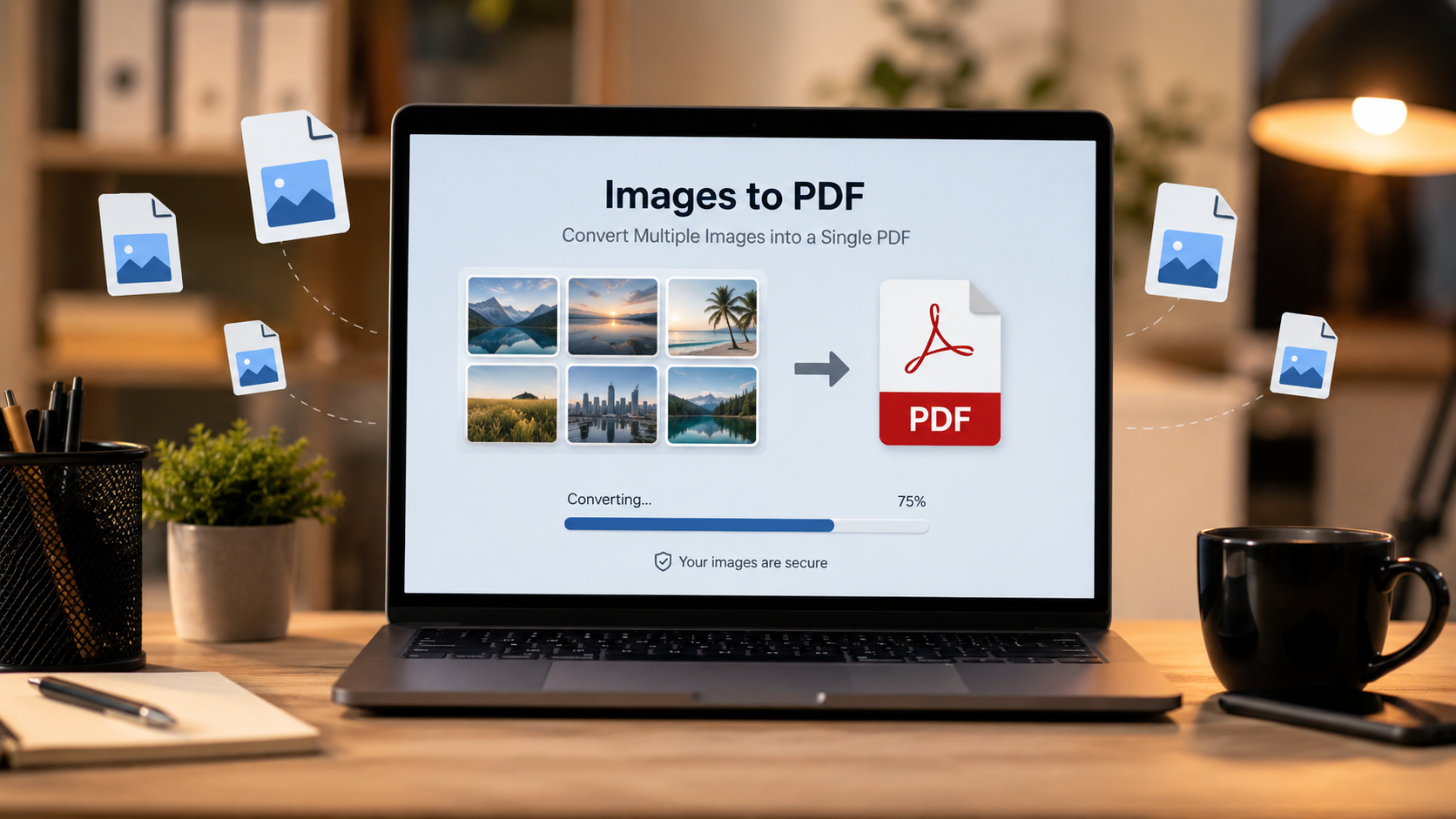
Images to PDF Converter
Drop in one or many images and get a multi-page PDF in seconds. No upload, no sign-up, no watermarks.
Method 1: Browser-based converter (fastest)
Browser-based online converter
This is the method most people should use. It requires no installation, works on any device with a browser, and — with a properly built tool — never uploads your file anywhere.
Open the converter
Go to Images to PDF for multi-image conversion, or JPG to PDF for a single file. Both work in any modern browser — Chrome, Firefox, Safari, Edge.
Drop in your images
Drag and drop your JPG, PNG, WebP or HEIC files onto the page — or click to browse. You can add multiple images at once for a multi-page PDF. The files never leave your device; conversion happens locally in your browser using the Canvas API.
Reorder if needed
If you added multiple images, drag the thumbnails into the order you want them to appear in the PDF. The first image becomes page 1, the second becomes page 2, and so on.
Choose page settings
Pick the page size (A4, Letter, or "Fit to image" for a PDF that exactly matches the image dimensions). Choose portrait or landscape orientation. For images that are mostly text, pick A4 portrait. For wide photos, "Fit to image" is usually best.
Convert and download
Click Convert. The PDF is generated in about 1–2 seconds per image and downloads automatically. The whole process takes under 2 minutes for a typical batch of 5–10 images.
JPG to PDF Converter
Convert one JPG or PNG file into a PDF in your browser. No upload, no watermark.
Method 2: Phone built-in (iOS and Android)
Your phone's built-in PDF export
Both iPhone and Android have built-in ways to save an image as a PDF. No app, no browser, no setup.
On iPhone (iOS)
- Open the Photos app and select the image (or images) you want to convert
- Tap the Share button
- Scroll down and tap Print
- On the Print Options screen, pinch outward on the small preview with two fingers
- The preview expands into a full-size PDF. Tap the Share button to save it to Files, email it, or AirDrop it
The pinch gesture is not obvious — Apple hides it — but it works every time. Multiple images selected at step 1 become multiple pages in the same PDF.
On Android
- Open the image in Google Photos or the Files app
- Tap the three-dot menu (or Share)
- Choose Print
- Change the printer to Save as PDF
- Tap the PDF save button
Some Android skins (Samsung One UI, Xiaomi MIUI) have a "Save as PDF" option directly in the Share menu, which is even faster.
Method 3: Desktop OS built-in (Windows and Mac)
Your computer's built-in print-to-PDF
Both Windows and macOS include a virtual PDF printer that any application can use. This is the oldest and most universal method — it works even without an internet connection.
On Windows
- Open the image in any viewer (Photos, Paint, or your browser)
- Press Ctrl + P or go to File → Print
- Change the printer to Microsoft Print to PDF
- Choose paper size and orientation
- Click Print and choose where to save the PDF
On macOS
- Open the image in Preview
- Press Command + P
- In the print dialog, choose Save as PDF from the PDF dropdown in the bottom-left
- Name the file and choose a save location
To combine multiple images into one PDF on Windows, use Paint or Word to insert them onto a canvas, then print the whole thing to PDF. On macOS, select all images in Finder, open them together in Preview, and save as PDF — you get one page per image.
Common mistakes to avoid
Using a converter that uploads your files
Many online converters transmit your image to a remote server, process it there, and send back the PDF. For public images that is fine. For confidential documents — ID cards, medical records, financial statements — it is a real privacy risk. Browser-based converters do all the work locally using the Canvas API and never upload anything. Check the tool's privacy policy before uploading anything sensitive.
Choosing the wrong page size
If you convert a wide 16:9 photo to an A4 portrait page, the image will either be shrunk down to fit (with white bars top and bottom) or cropped. If the image has no required paper size — for example, a photo collection — use "Fit to image" so the PDF matches the image dimensions exactly. If the PDF will be printed on standard paper or filed digitally, A4 or Letter is the safer choice.
Compressing too aggressively
Some converters offer "low quality" or "small file size" options that aggressively re-encode the image, sometimes reducing a 5 MB photo to 300 KB. The result looks fine on a phone but is visibly soft or blocky when printed. Unless you specifically need a tiny file, always choose the highest quality setting. You can always compress the PDF afterwards if the file is too large.
Forgetting about transparency
PNG files can have transparent backgrounds; JPG cannot. When you convert a transparent PNG to PDF, most converters fill the transparent area with white. If you need the transparency preserved, check whether your converter supports it — most do not, and you would need a specialist tool.
Not checking the output before sending
Always open the resulting PDF and scroll through every page before sending it anywhere. Common issues to check for: pages out of order, orientation flipped, an image shrunk to a tiny size, or a page with a blank background where the image should be. Catching these now saves a re-send later.
Tips for the best results
- Resize before converting if the image is huge. A 6000×4000 photo does not need to be a full-page PDF. Use the Image Resizer to bring it down to 2000px wide first — the PDF will be smaller and faster to open with no visible quality loss
- Compress first if the source is very large. For a 20 MB batch, running each image through the Image Compressor first can cut the resulting PDF size by 70% or more
- Name files logically. Instead of "IMG_2841.pdf", use something descriptive like "Passport-Scan-2026.pdf". Future-you will be grateful
- Combine before converting. If you have ten single-image PDFs, use Merge PDF to combine them into one file instead of attaching ten separate PDFs to an email
- Check the PDF afterwards. If the file is too large to email, use Compress PDF to bring it under attachment limits
The reverse: PDF to image
Sometimes you need the opposite — pulling images out of a PDF. That is what the PDF to JPG tool does, converting every page of a PDF into a separate image file. Useful when you need to reuse a photo that was scanned into a PDF, post a page to social media, or crop a specific part of a page for a presentation.
The bottom line
Converting an image to PDF is one of those tasks that should take 30 seconds and often ends up taking 10 minutes because of watermarks, app installs or file size limits. The three methods in this guide bypass all of that:
- Browser-based converter — fastest, no install, works on any device
- Your phone's built-in PDF export — already on your device, no download
- Print to PDF — works offline, available on Windows and macOS
Whichever method you use, the result is the same: a universal, print-ready document that opens on any device. Pick the one that fits your situation, and you will be done in under 2 minutes.