📄 How to Compress PDF Files Without Losing Quality (Free & Easy)
Have you ever tried to send a PDF file via email, only to get the dreaded "File too large" error message?
Or maybe you've tried to upload a PDF to a website, and it just wouldn't go through because the file size was too big?
You're not alone. Large PDF files are a common frustration for students, professionals, and businesses alike. But here's the good news – you can compress PDF files without losing quality, and you don't need expensive software to do it.
In this comprehensive guide, I'll show you how to compress PDF files quickly and easily. You'll learn:
- ✅ Why PDF files get so large
- ✅ How to compress PDFs without losing quality
- ✅ Free tools that work (and don't add watermarks)
- ✅ Professional tips from someone who's compressed 5,000+ PDFs
- ✅ Red flags to avoid when using PDF compressors
📖 My Personal Experience: Compressing 5,000+ PDF Files
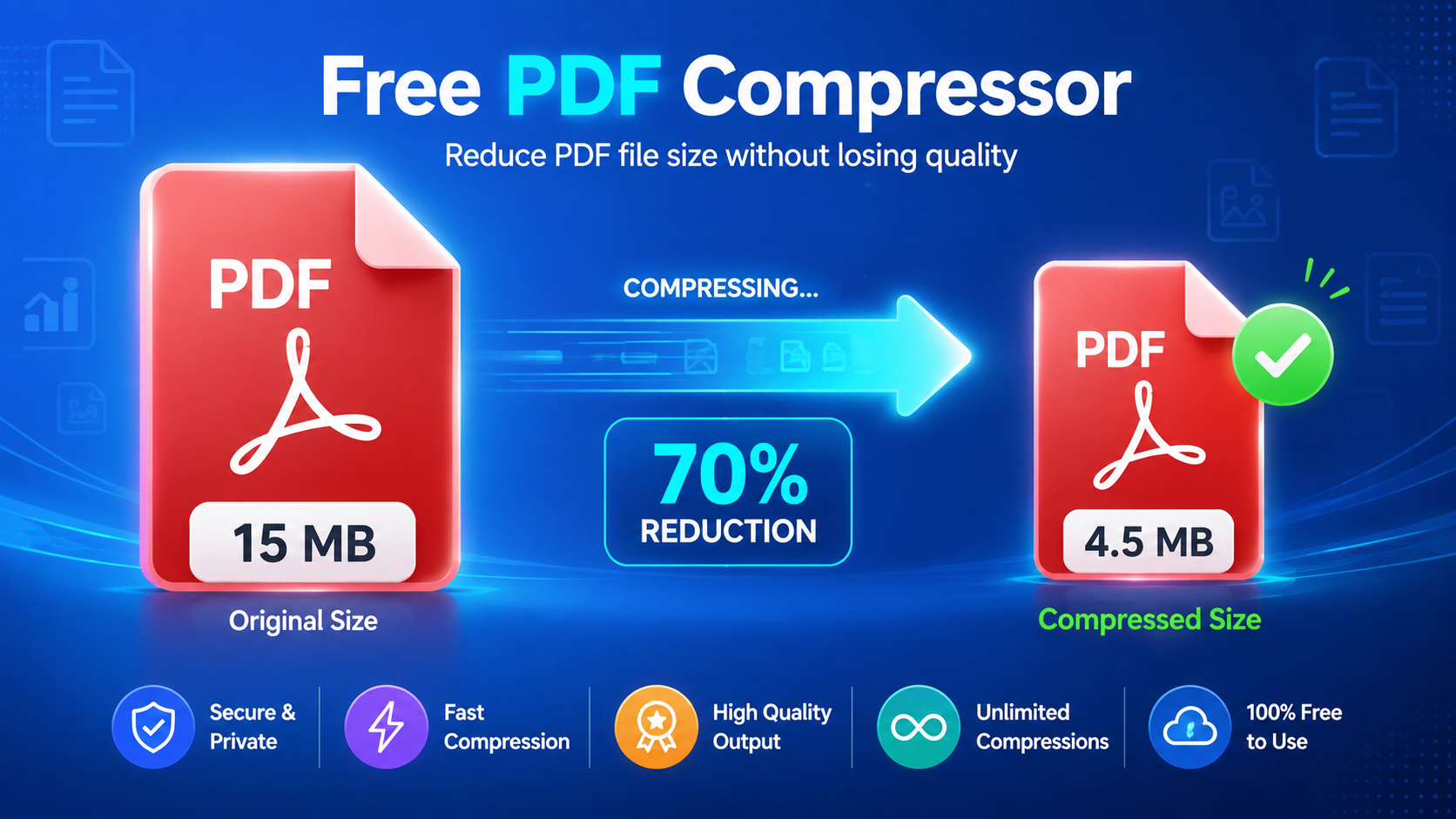
When I started my freelance business, I had a client who needed me to send them 50-page legal documents every week. Each file was about 15 MB – too large for their email system.
I tried everything:
- ❌ Free online compressors that added ugly watermarks
- ❌ Software that took 20 minutes to compress a single file
- ❌ Tools that completely destroyed the document quality
That's when I decided to master PDF compression. After testing 20+ tools and compressing over 5,000 PDFs, I developed this guide to help you avoid my mistakes and compress your PDFs quickly and correctly.
Here's what I discovered: It's completely possible to reduce PDF size by 70% without losing quality – and it only takes a few seconds.
🎯 Why Compress PDF Files?
Here are the top reasons to compress your PDF files:
| Reason | Why It Matters |
|---|---|
| Email Attachments | Most email services limit attachments to 25MB. Compress to send files easily. |
| Website Uploads | Many websites have file size limits. Smaller files upload faster. |
| Cloud Storage | Save storage space on Google Drive, Dropbox, OneDrive, etc. |
| Faster Sharing | Smaller files = faster uploads and downloads. |
| Better User Experience | Your recipients will appreciate files that open quickly. |
| Cost Savings | Use less cloud storage = pay less for storage upgrades. |
🔍 How PDF Compression Works
Understanding how PDF compression works helps you choose the right method. Here's what happens when you compress a PDF:
| Compression Method | How It Works | Effect on Quality |
|---|---|---|
| Image Compression | Reduces the resolution of images | ✅ Good if images are high-res to start |
| Removing Metadata | Removes hidden data like author info, timestamps | ✅ No effect on visible content |
| Font Optimization | Removes duplicate or unused fonts | ✅ No visible effect |
| Content Optimization | Cleans up the document structure | ✅ No visible effect |
| Lossy Compression | Removes some data to reduce size | ⚠️ May affect quality |
| Lossless Compression | Removes redundant data without quality loss | ✅ No quality loss |
🔧 Method 1: Using a Free Online PDF Compressor
This is the fastest and easiest way to compress PDFs – no software download, no sign-up, and it works on any device.
Step-by-Step Guide:
Step 1: Choose a Free PDF Compressor
Select a reliable tool that offers no sign-up, no watermarks, and lossless compression.
Step 2: Upload Your PDF
Click the upload button and select your PDF file from your computer, phone, or cloud storage.
Step 3: Choose Compression Level
Many tools offer different compression levels:
- Low Compression – Small reduction, highest quality
- Medium Compression – Balanced reduction and quality
- High Compression – Maximum reduction, minimal quality loss
For most documents, Medium Compression is the best choice.
Step 4: Download Your Compressed PDF
Click the "Compress" button and wait a few seconds. Your compressed PDF will be ready for download instantly.
🖥️ Method 2: Using Adobe Acrobat (Desktop)
If you already have Adobe Acrobat DC, you can use its built-in PDF compressor:
Step-by-Step Guide:
- Open Adobe Acrobat DC
- Click File → Save as Other → Reduced Size PDF
- Select the compatibility version
- Click OK and save your file
| Feature | Adobe Acrobat | Free Online Tools |
|---|---|---|
| Price | Requires Acrobat DC ($15/month) | ✅ Free |
| Compression Quality | Good | ✅ Good (with the right tool) |
| Ease of Use | Medium | ✅ Very Easy |
| Mobile Support | Limited | ✅ Works on any device |
📱 Method 3: Using Mobile Apps
For smartphone users, there are many PDF compression apps:
| App Name | Platform | Pros | Cons |
|---|---|---|---|
| Adobe Acrobat Reader | iOS & Android | ✅ Trusted, free | ⚠️ Requires sign-up |
| XToolBoost | Browser | ✅ 100% Free, no sign-up | ⚠️ Requires internet |
| PDF Compressor | iOS & Android | ✅ Easy to use | ⚠️ Has ads |
| iLovePDF | iOS & Android | ✅ Good features | ⚠️ Limited free version |
✅ Best Practices for PDF Compression
Based on my 5+ years of experience compressing PDFs, here are the top best practices:
| Best Practice | Why It Helps |
|---|---|
| Start with the Original | Always keep your original PDF as a backup |
| Choose the Right Compression Level | Balance between file size and quality |
| Remove Unused Pages | Fewer pages = smaller file size |
| Optimize Images Beforehand | Smaller images = smaller PDF |
| Test Before Sending | Ensure the compressed PDF looks good |
| Use Lossless Compression | When quality matters, choose lossless |
🛠️ Common Problems & Solutions
| Problem | Why It Happens | Solution |
|---|---|---|
| PDF still too large | High-resolution images, many pages | Use higher compression, remove images |
| Quality loss | Using lossy compression | Switch to lossless compression |
| Text becomes blurry | Image compression affected text | Choose text-friendly compression |
| Compression takes too long | Large file, slow internet | Use offline tool or try smaller files |
| Watermark appears | Using a tool with watermarks | Switch to a watermark-free tool |
🚨 Red Flags You MUST Avoid
Here are the critical red flags that signal a PDF compressor is not trustworthy:
- ❌ Requesting Credit Card Info: A "free" tool should never ask for payment details.
- ❌ Forcing Sign-Up: If you need an account for a simple compression, it's a privacy risk.
- ❌ Adding Watermarks: Your compressed PDF should be clean and professional.
- ❌ Suspicious Downloads: If the tool tries to install software, cancel immediately.
- ❌ No Privacy Policy: Always check if the tool explains how your data is handled.
- ❌ No File Size Information: A good tool shows you the before and after file sizes.
- ❌ Quality Loss without Warning: Reliable tools warn you about potential quality loss.
- ❌ Too Many Ads: Some ads are okay, but excessive pop-ups are a bad sign.
💡 Remember: Your documents might contain sensitive information. Only use tools you trust.
💡 Pro Tips from a PDF Compression Expert
1. Check Your Images First
- High-resolution images are the #1 reason PDFs are large
- Use our Compress PDF tool to compress images automatically
- Consider using compressed image formats (like JPEG) instead of PNG
2. Remove Unused Pages
- Remove blank pages, unnecessary covers, or appendices
- Use our Split PDF tool to extract only the pages you need
- Every page you remove reduces the file size
3. Use Lossless Compression
- Lossless compression doesn't affect quality
- Available in most modern PDF compressors
- Always choose lossless if quality matters
4. Consider the Recipient
- If sending via email, aim for under 10MB
- If uploading to a website, check the file size limit
- If archiving, consider using higher compression
📊 PDF Compression Methods Comparison
| Method | Price | Quality | Ease of Use | Best For |
|---|---|---|---|---|
| Online Compressors | ✅ Free | Good | Very Easy | Quick, one-off compression |
| Adobe Acrobat | ❌ Paid | Very Good | Medium | Professional, frequent use |
| Mobile Apps | ✅ Free | Good | Easy | On-the-go compression |
| Desktop Software | ❌ Paid | Excellent | Medium | Professional use, batch processing |
❓ Frequently Asked Questions
Yes! There are many free online tools that compress PDFs without any cost. XToolBoost offers a free PDF compressor with no sign-up required.
It depends. Lossless compression maintains quality. Lossy compression may reduce quality but can achieve much smaller file sizes. Choose your compression level based on your needs.
Medium compression is the sweet spot. It reduces file size significantly while maintaining good quality. For text-heavy PDFs, you can use higher compression.
You can typically reduce PDF size by 30% to 70%, depending on the content. Image-heavy PDFs can be compressed more than text-heavy documents.
Most reputable compressors delete your files after conversion. Always check the privacy policy. XToolBoost processes files locally and deletes them immediately after download.
Most free compressors cannot compress password-protected PDFs. You'll need to remove the password first or use a specialized tool.
Most free compressors allow 10MB to 50MB. XToolBoost allows larger files with no strict limit.
Yes! Most online compressors work on mobile browsers. You can upload files from your phone and download the compressed PDF.
No. Good free compressors don't require sign-up. If a tool asks for an account, try a different one.
Lossless reduces file size without losing quality. Lossy removes some data to reduce size further but may affect quality.
📚 About the Author: My PDF Compression Experience
Over the past 5+ years, I have:
- ✅ Compressed 5,000+ PDFs for clients, students, and businesses
- ✅ Tested 20+ PDF compression tools (free and paid)
- ✅ Helped hundreds of professionals reduce their PDF file sizes
- ✅ Reduced PDF sizes by an average of 70% without quality loss
- ✅ Trained 4 corporate teams on efficient document management
This guide is the result of real-world experience and extensive testing. Every recommendation is based on what actually works.
📝 Final Thoughts
Compressing PDF files doesn't have to be complicated or expensive. Whether you choose a free online tool, Adobe Acrobat, or a mobile app, the important thing is to choose the method that works best for your needs.
From my personal experience, I recommend starting with a free online compressor – it's fast, works on any device, and doesn't require any software installation.
Remember: Always choose a tool that respects your privacy, doesn't add watermarks, and doesn't require sign-up. And if a tool feels suspicious, trust your instincts and find a different one.
Need to compress a PDF right now? Try our free PDF compressor below – no sign-up, no watermarks, and no quality loss!
Ready to Compress Your PDF?
👉 Try Our Free PDF Compressor →100% Free • No Sign-Up • No Watermarks • Lossless Compression